Select a Standard Category
General Standards
Client Standards
1 Project Kickoff
-
Receive final questionnaire QRE, logic notes, translations, and sample specs
-
Internal kickoff / KO call to clarify:
Survey ObjectivesComplex Logic & QuotasExpected Timelines (Programming, Pretest, Launch)
2 Questionnaire Review & Feasibility
Identification Checkpoints:
Share programming questions & assumptions with client/team proactively.
3 Programming Setup
Configuration Tasks:
- Screeners & Terminations
- Quotas & Sample Source
- Randomization & Rotations
- Validations & Checks
Mobile Responsiveness
Mandatory verification for all question types
4 Internal Testing (Self-Testing)
Logical Flow
Text & Labels
Look & Feel
Negative Test
5 QA Team Testing
Fix all internal issues BEFORE sharing with the QA team.
If QA identifies any changes or issues, update them immediately.
Action Required: Secure QA Sign-Off before Client share
6 Client / Stakeholder Review
Share Test Link
Ensure all debug modes and internal tools are configured for client review.
Client Test Focus:
- Logic Accuracy
- Question Wording
- Visual Consistency
Receive Consolidated Feedback
7 Revisions & Final QA
1. Implement
Strict adherence to consolidated client feedback only.
2. Regression
Conduct full testing to ensure fixes didn't break existing logic.
Final Verification List:
8 Pretest / Soft Launch
Configure live settings and share active link with selected panel partners.
Drop-offs
LOI Check
Critical Data Check:
Perform Data Validation (DV) checks to ensure zero data discrepancies before full launch.
9 Full Launch
Push Survey Fully Live
Only after pretest data and logic are verified by TL/PM.
100%
Quota Fill Rate
HIGH
Data Quality
ACTIVE
Sample Health
10 Field Monitoring & Ongoing Support
Support Tasks:
- Approved Logic Tweaks
- Quota Adjustments
- Reinvites / Recontacts
Continuous QA
Real-time monitoring during the entire fieldwork phase.
11 Field Close & Data Delivery
Close survey once quotas are met
strictly after final confirmation from client.
-
</>Localization Support
Use
<res>tags for all tooltips, mouse-overs, instructions, and error messages to ensure full localization support. -
99Standard Precodes
Enforce specific precodes for exclusive options: use 98 for 'Other (Specify)' and 99 for 'None of the above' / 'Don't know'.
-
≡Reusable Lists
Create global
definelists for any answer sets used multiple times to maintain consistency and reduce redundancy. -
★Brand Consistency
Maintain consistent coding values for brand-related questions throughout the entire survey lifecycle.
-
[]Section Blocking
Wrap logical sections in
blocktags and include comments identifying the section name for easier navigation. -
123Numeric Formatting
Implement automatic comma separation for all numeric inputs with 3+ digits (e.g., 1,000).
-
//Documentation
Add clear, explanatory comments for any complex or custom logic to explain the "why" behind the code.
-
⏱️Incremental Testing
Send test links section-by-section to align with ETA timelines and prevent delivery delays.
-
📱Mobile Scope
Explicitly state if mobile testing is required so QA can allocate appropriate resources.
-
📂Documentation
Provide clear file paths to all necessary reference documents for easy access.
-
⚠️Special Instructions
Include critical scenarios or specific instructions directly in the handover email.
-
✍️Review Ownership
Thoroughly review points and sign your name when adding comments to the log.
-
🔄Timely Updates
Update the QA logs promptly to reflect the current status of fixes.
-
🛠️Actionable Fixes
Address relevant issues directly in the survey; avoid dismissive comments like 'fine'.
-
✅Client Readiness
Ensure QA Sign-off is complete before sharing any links with the client.
-
🛡️Change Control
All logical or live changes must go through QA review and sign-off.
-
🚀Proactive Initiation
Initiate DV early if the survey is stabilizing; share all final document paths and specify which to use.
-
💡Pre-emptive Clarity
Pre-emptively clarify complex logic or unique requirements to guide the DV team before they ask.
-
⏳ETA Alignment
Obtain a clear ETA from the DV team to align with client delivery expectations.
-
🔄Change Communication
Immediately communicate any pre-live changes, providing updated QREs and highlighting specific modifications.
-
✍️Review & Sign-off
Review DV updates, log comments with your signature, and obtain final sign-off from a lead/senior member.
-
📊Live Status
If DV is clean, update the status of current completes based on the client ETA; re-run if significant time has passed.
-
🛡️Script Integrity
Ensure all live changes are sent to DV to update the script and verify integrity.
Standard Operating Procedure
Simon Kucher Project Lifecycle
Click the SOP tab to view document
https://sw2.decipherinc.com/apps/portal/#/projects/detail/selfserve/15cb/sk2026
Important: Use the link above to duplicate the template for all new surveys.
Kick-off Call (KOC) Protocol
Preparation
-
1
A KO call will be scheduled for every survey before programming begins to walk through the survey details.
-
2
We will receive the draft survey prior to the KO call.
-
3
The draft should be fully reviewed so we’re prepared for the discussion.
During Call
-
4
If we have any questions, or if there are complex setups or logic requirements, we should connect with the SK team beforehand to discuss and propose the best possible approaches.
-
5
During the call, the SK team will outline their expectations for launch and other things.
-
6
Based on the draft, we should communicate the expected TAT.
-
7
They will confirm when we can receive the final QRE and share any additional instructions or survey-related updates.
Project Life Cycle
Planning & Prep
-
1
Before the Kick-off Call (KOC), we will receive a draft which must be reviewed to ensure readiness.
-
2
Discuss all survey-related specifications and requirements during the KOC.
-
3
After receiving the updated questionnaire, review it and share a section-wise ETA.
-
4
Share any queries for clarification with the PM via the log link.
Programming & QA
-
5
Start programming and send test links to the QA team section-wise.
-
6
Once QA signs off, send the test links section-wise to the PM as committed.
-
7
Continue sending all subsequent sections upon completion and QA sign-off.
-
8
The PM will update feedback in the log link and notify us. We must then provide an updated ETA for those changes.
-
9
This iterative process applies to all rounds of changes.
Live Operations
-
10
Once the survey link is approved, push the survey to Live status.
-
11
Data Validation (DV) should be initiated immediately upon approval.
-
12
Once DV is complete, inform the Client to update the status.
-
13
Implement any live changes requested by the client promptly.
-
14
After these steps, the survey will be fully launched.
-
15
We may receive live changes or quota updates to implement during fielding.
-
16
Monitor the quotas continuously during the fielding phase.
-
17
Once the Client requests closure, close the survey and notify them.
All SK studies, PII (e.g., email IDs) must be stored and captured in a separate PID.
sw2.decipherinc.com/apps/portal/#/projects/detail/selfserve/15cb/250211
sw2.decipherinc.com/apps/portal/#/projects/detail/selfserve/15cb/250219
- Always place the PII information at the end of the survey.
- State variable is passed to redirect back respondent to main pid.
- Uuid must be passed to map the respondents in Main PID.
Self-Testing Checklist
Functional & Device Testing
Check the survey on both desktop and mobile devices to ensure responsiveness.
Verify the flow of questions makes logical sense for the respondent.
Ensure all questions show and skip correctly based on logic.
Negative Testing & Errors
Perform Negative Testing:
- Try to proceed leaving required questions unanswered.
- Select mutually exclusive options (e.g., "None" + others).
- Enter invalid inputs (text in number fields, out-of-range values).
Confirm proper error messages appear clearly when validation fails.
Content & Visual Polish
Review all spelling, grammar, and clarity throughout the survey.
Ensure piped text (names, brands, previous answers) displays correctly.
Check Overall Look & Feel:
- Verify alignment, spacing, and font consistency.
- Ensure buttons and interactive elements are clear and consistent.
Change Management Process
1. Mandatory Logging
The Change Log must be strictly followed for tracking all survey modifications and updates.
2. Centralized Queries
Post all clarification queries directly within the Log itself to maintain a single source of truth, rather than relying on scattered emails.
3. Source Reference
When notifying via email, explicitly state the source Log entries you have used for the current updates.
4. Implementation Status
As you address each point, immediately update the status in the Log to "Changes Implemented" (or similar).
5. Mark as Done
Once all queries are addressed and all modifications in the batch are complete, update the overall status to "Done".
6. Client Verification
Ask the Project Manager (PM) to verify the changes and update the status to "Resolved" if everything is applied correctly.
When we share the quotas dashboard link with the SK team for their review, we should also include screenshots of hard quotas listed in the questionnaire. Please make this as a standard step going forward, as it gives us clear documentation in case any changes are made by the SK team later and also helps the team review and approve the quotas more quickly.
Live Process Standards
Pre-Live Coordination
- Coordinate with Partners: Programmers must sync with sample partners before going live.
- Redirects: Add all required redirects in Forsta and share the live link format.
- Dupes: Ensure Reinvite source is configured with
disableBrowserDupes="1". - Test: Thoroughly test all redirects (Terminate, Complete) before sharing links.
Vendor Access
Ensure all PMS users in the email chain have study access.
Mandatory Email Text:
"Please check and confirm whether you can access the dashboard. Also, let us know if survey access is required for any additional users."
Sample Source Naming Conventions
| Sample Type | Code | Example |
|---|---|---|
| Off-list / Panel | PL | toluna_PL |
| Client list / On-list | CL | toluna_CL |
| Reinvite | RI | toluna_RI |
| Recontact | RC | toluna_RC |
| CATI | CATI | toluna_CATI |
| Qual | Qual | toluna_Qual |
| Pretest – Screener | PTS | toluna_PTS |
| Pretest – Full | PTF | toluna_PTF |
Survey Settings Checklist
autosaveKey.(Only one unique key per sample source).
If the survey is restricted to Desktop/Laptop/Tablet, remove Mobile access in the device settings and add the following res tag in the survey:
Thank you for being willing to participate in this survey! We wish to show you new concepts that require a full computer screen or a tablet – to take this survey, please return to this link from a desktop or laptop computer.
</res>
CATI Requirements (GLG/GRG)
Confirm if CATI is included. If yes:
- Provide both ONLINE and CATI link formats.
- Enable the Back button for CATI users.
- Set
disableBrowserDupes="1"in the CATI source.
Validation & Quality Checks
Simulated Data
- All quotas are receiving counts.
- No respondents are terminated due to not qualifying for any quota.
- Review the Terminate page.
- Update quota tags regarding termination logic if required.
- If necessary, confirm with the client whether respondents may complete the survey without qualifying for hard quotas.
Quota Finalization
- Finalize quotas before live.
- Share link + screenshots with consultants.
- Client Lists: Cross-tab vs Panel. Keep CL soft/open; apply hard quotas only to panel.
Panel Test IDs
- Verify capture status in Forsta.
- Delete test records.
- Confirm with the PM in the vendor email to give the green light to launch the survey.
Post-Live Template Configuration
After pushing live: Select “Set to Survey Order” and ensure vterm is included.
Reinvite Protocol
During fieldwork, clients may request reinvites. Follow these steps:
Identify Records
Locate records either via Client-provided IDs or by deriving them based on the specific scenario.
Delete Records
Before deleting, keep a copy of all logins data with all variables. Then, delete the identified records from Forsta before sending invites.
Vendor Communication
Share the Reinvite link format, panel-specific unique IDs, and any other required variables.
No separate link format required. Simply delete the records and share the reinvite IDs directly with the CATI vendor.
Live Changes Protocol
dtrack Updates
Mandatory for every live change.
dtrack sequentially (e.g., v1 -> v2).
Approval Process
Share the temp-edit link with consultants.
-
1. Protect Quotas
Download quotas from the LIVE study before doing anything.
-
2. Update & Push
Before pushing live, update the current live quotas (pulled from the live environment) so that the quotas will be matching with the live environment.
-
3. Template Maintenance
Save the standard template. This ensures newly added variables appear correctly at the end.
Adding New Panel Partner Post-Live
- Follow the standard redirect setup process.
- Download and Re-upload LIVE quotas before pushing changes to live.
- Save the standard template after deployment.
Multi Country Study Standards
Technical Configuration
Country Variable Setup
Create a hidden question at the start to capture the country.
- ID:
hCountry - The code is usually passed via URL and must be punched into this question.
- Crucial: All country-specific logic must be driven exclusively by the
hCountryvariable.
Currency Conversion
Hidden questions should be created with USD conversions as analysis is typically in USD.
Content & Formatting
Ensure res/pipe tags are used consistently for all types of piping throughout the study.
Pipe the respective currency symbol in each pricing question. (Ask the team if these are missing).
Always program formatting based on the market:
Translation & Localization
Timing Prerequisites
Translation activities must begin only after the English survey link is finalized.
- If requested earlier, inform the PM/Consultant that waiting is ideal.
- Communicate this expectation clearly during the KO Call.
Language Selection
Place a selection question at the beginning. Update both the survey language and decLang variable.
setLanguage('french')
setExtra('decLang', 'french')
Conditional Piping
Always pipe the entire sentence or phrase, not individual words. Partial word piping causes grammatical issues in translated languages.
Media & Asset Management
All images and media files must be hosted within Decipher.
Dynamic Path Implementation:
Use dynamic paths so images work in both temp-edit and live.
rel attribute (e.g., [rel image.png]) when different images are required for different countries.
Fielding in China?
Separate strict checklist must be followed.
China Hosting Standards
Strict Hosting Requirement
There is an important standard that must be strictly followed whenever the survey is fielded in China.
All survey assets must be hosted within Decipher only and should not be uploaded or linked from any external platforms (e.g., AWS).
- All images
- Any external framework JS or CSS files (Tippy, fancy box, etc.)
- Internal Component JS / CSS files (example, drag and drop, ranking, etc.)
Because China's firewall will block external resources (JS, CSS, images, etc.) which are loaded in other sites.
Load all survey-related assets directly into the survey environment. This prevents resource failures, blocking the survey, and ensures the survey behaves consistently for respondents in China.
Translations Process with THG
Previous Process
LegacyFormerly, once the survey was approved for translation:
- Add required languages to the project.
- Export translation Excel file -> send to agency.
- Import translated file -> test survey -> send test link.
New Translation Workflow
Streamlined interaction with THG via API
Add Languages
Add all required languages to the survey before translation work begins.
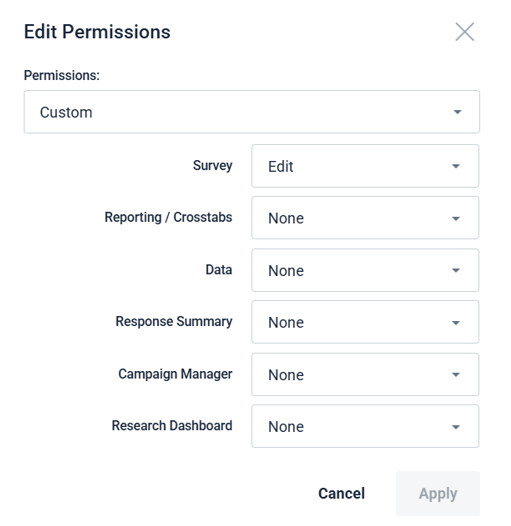
Grant Access
This ensures the team can view and edit translation content without full admin rights.
Share Details
Critical Requirement
If the survey is moved to LIVE status after sharing the link, you must resend the temp-edit-live link. Without this, the API cannot load translations.
THG Integration
THG will programmatically export, translate, and re-import content via the Decipher API. No action required until they notify completion.
Test Survey
- Verify all screens.
- Check for default text.
- Manually update missing items.
Share Test
Once fully verified:
Go Live
Update any final feedback manually.
Generic Link Process (Email Entry)
Standard Template
MandatoryWhen receiving a request to provide a generic link based on email address entry, we have created a separate standard template for this purpose. Please use this template for all such requests going forward.
https://sw2.decipherinc.com/apps/portal#/projects/detail/selfserve/15cb/251233
What are we doing?
Why have we created this?
As email addresses are PII, there is a risk that they could be unintentionally exposed, for example:
- If a panel vendor downloads data
- Or when data is shared with clients without noticing the presence of email fields
Additional Benefit
Entering the same email address always generates the same encoded value. This allows respondents to:
- Re-enter the survey using the same email
- Resume the survey from where they previously left off
Datamap related Questions
Disclaimer Note
This note should be added when you are sending the dummy data to PM before survey sets to live, this is very important.
- Please note that the data layout shared is not final, and column positions may change if further updates are made to the survey.
- This file is provided only for data validation and checking purposes and should not be used for setting up analysis.
- We recommend using the data layout for analysis only after the survey is set to LIVE.
- Once the survey goes live, any new questions or answer options will be appended at the end of the data map.
1. Before Setting the Survey LIVE
- Decipher generates a preliminary data map, but the variable order can be random, and some variables may be missing or out of sequence. Sometimes they can also be in order.
- This version should not be relied upon—it’s for reference only.
- @SK Programming When sharing dummy data, please include a clear disclaimer that the map is for reference only and not to be used for any analysis.
2. After Setting the Survey LIVE
- Decipher recalibrates and generates a new data map, which is typically in order.
- However, when a project is duplicated from a previous job (or due to unknown system reasons), the order may still appear random. Programmer can put them in order if needed.
3. LIVE changes and new variables
- Decipher does not add new variables from LIVE changes to Data Map automatically.
- @SK Programming To include new variables, one must open the layout and click Add Variables. This is a small step often missed; let’s make sure to add new variables to map after LIVE changes.
- Any newly added variables will appear at the end of the map to preserve the existing order.
Important Note
- In rare cases, the data map order in LIVE surveys may change due to backend synchronization issues.
- If this happens, we can manually update the map to match the previous order.
Other Additional Standards
Implementation Requirements
Vterm Implementation
Add vterm to the standard template immediately following the live setup.
Data Template Updates
Save the standard data template whenever a new partner is added during the live phase.
Data Governance & Requests
Vendor Data Access: We can provide vendors with their specific data upon request.
If a vendor requests ID deletions, the programmer is responsible for disqualifying them via EasyRecon.
If a PM requests ID disqualification, they should handle it on their end. We must communicate this expectation clearly.
Permission Logic
Can provide Data Download permissions.
Grant View Only permissions to all vendors.
Overview content for Antares.
...
Duplicate Template
Duplicate the programming template pID: REP DATA PROGRAMMING TEMPLATE v3 – Insient
https://repdata.decipherinc.com/apps/portal/#/projects/detail/selfserve/53b/instemplatev3
Naming Convention
Rename the duplicate as: REP-XXXXXX [Study Name]
Example: REP-123456 Customer Survey
Team Access
Ensure the team has access to the survey. Grant permissions immediately if needed.
Single Choice Questions
Multiple Choice Questions
Numeric Input Questions
Use numpad/script and apply comma separator.
Grid/Matrix Questions
Special Codes
Examples: hQ101, hQ202
Examples: hQndp1, hQndp2
Piping
Always use hidden variables for piping. Never pipe directly from questions.
Error Messages
Use res tags for all messages. Avoid hardcoding text in the survey xml/python.
-
01
Use naming convention:
BrandName1.png/BrandName1.mp4 - 02 Do not use spaces in filenames.
- 03 Create hidden variables for all assets.
- 04 Ensure consistent resolution and request high-quality files.
Strict Adherence Required
RepData requires exact adherence to the QNR content. All updates must strictly follow the QNR.
1. Timeline
Follow TL/Manager timelines strictly.
2. Peer Review
Primary and secondary programmers must test the link thoroughly.
3. QA Approval
QA must approve the link (ensure logs are clear) before sending to PM.
4. Final Check
Recheck the link one last time before sharing.
Live Checklist
- No changes allowed after PM approval without confirmation.
- Double-check live links before sharing.
- Notify DV immediately after approval. If the survey is lengthy, allow prior notice.
Tracking
Add hidChange flag and comment for DV tracking.
Quotas
Download live quota and load into temp-edit-live.
Deployment
Push to live only after PM approval. Notify PM and DV once complete.
Overview content for Med Survey.
...
Overview content for Brightside Research.
...
Overview content for KJT.
...
Overview content for Atheneum.
...
This section contains standards and notes for other clients or miscellaneous items.
Use this area to add general guidelines that don't belong to the named clients.